Categories
Uncategorized

Fixing the most painful part of Cosmic Terminal

I want to use Ctrl + Alt + P sometimes in terminal applications (OK, in emacs in a terminal), but that pulls up a password manager instead.

Google and their AI summary kept saying this couldn’t be changed, but when I sent digging in the source to “fix” it to not do that, I found it could be changed with no source code modification:

1. Open View → Keyboard Shortcuts
2. Scroll to find “Password Manager” in the list
3. Click the trash icon 🗑 next to Ctrl+Alt+P to remove that keybinding
Categories
Uncategorized

Postgres for everything?

While I appreciate the Postgres for everything point of view, and most of the times I use other things it could fit in Postgres, there are three areas that keep me using RabbitMQ or Redis.

First, I frequently use Celery and Celery doesn’t support using Postgres as a broker. It seems like it should, but I guess no one has stepped up to implement that. So, when I use Celery, I end up also using Redis or RabbitMQ.

Second, if I need MQTT clients coming in from the internet at large, I don’t feel comfortable exposing Postgres to that. Also, I’d rather use the mqtt ecosystem of libraries rather than having all of those devices talk Postgres directly.

Third, sometimes I want a size constrained memory only database or a database that automatically expires untouched records, and for either of those I usually use Redis. For these two tasks I use Redis. I imagine that it would be worth making a reusable set of stored procedures to accomplish the auto-expiring of unused records, but I haven’t implemented it. I have no idea how to make Postgres be memory only with a constrained memory side.

Beyond these three examples, I have always felt that full text search in Postgres was half baked. It has some of the pieces you need, but not all (for instance needing a separate trigram library to handle misspellings).

Categories
Uncategorized

Thoughts on the glory of the first day of winter

Looking at it in a different manner, the first day of winter is the beginning of the end of winter and is a day I look forward to every year. That is because it is when the days get longer. By my calculation, it is approximately 2 minutes each day, although Google tells me it is not a constant rate of increase. By comparison, I never look forward to the first day of summer because it means detestable weather and the days are getting shorter again.

Categories
Uncategorized
Categories
Uncategorized

Changing domain name on Ubuntu 24.04 stations

sudo vi /etc/systemd/resolved.conf

Under [Resolve] change or add:

Domains=jdboyd.net
SearchDomain=jdboyd.net
MulticastDNS=yes

Currently Google keeps trying to suggest netplan on various systems, but I find I don’t have netplan on any of them.

Categories
Uncategorized

TechLancaster Logos

Once someone stuck the old, beloved logo on a calander, it was clear that change was needed. Here is what we finally came up with in color, then black and white.

Categories
Uncategorized

Better dd img to sd/usb options

sudo dd if=2025-05-13-raspios-bookworm-arm64-lite.img of=/dev/mmcblk0 bs=4M status=progress oflag=sync

Categories
Uncategorized

Setting search domain on modern systemd Linux systems

Want to be able to ssh nas instead of having to do ssh nas.local? What you use your own domain to get SSL working correctly for local hosts without having to ssh nas.mycustomdomainislongsohelpme.dog? Wondering why you can’t just add .local and mycustomdomainislongsohelpme.dog to the search field in the ol’ /etc/resolv.conf?

Systemd is eating everything. It ate resolvd. Now we have to configured systemd for local search.

Edit `/etc/systemd/resolved.conf, and add or change the following line:
Domains=local,mycustomdomainislongsohelpme.dog

Then sudo systemctl restart systemd-resolved

Now Bob is your uncle.

Categories
Uncategorized

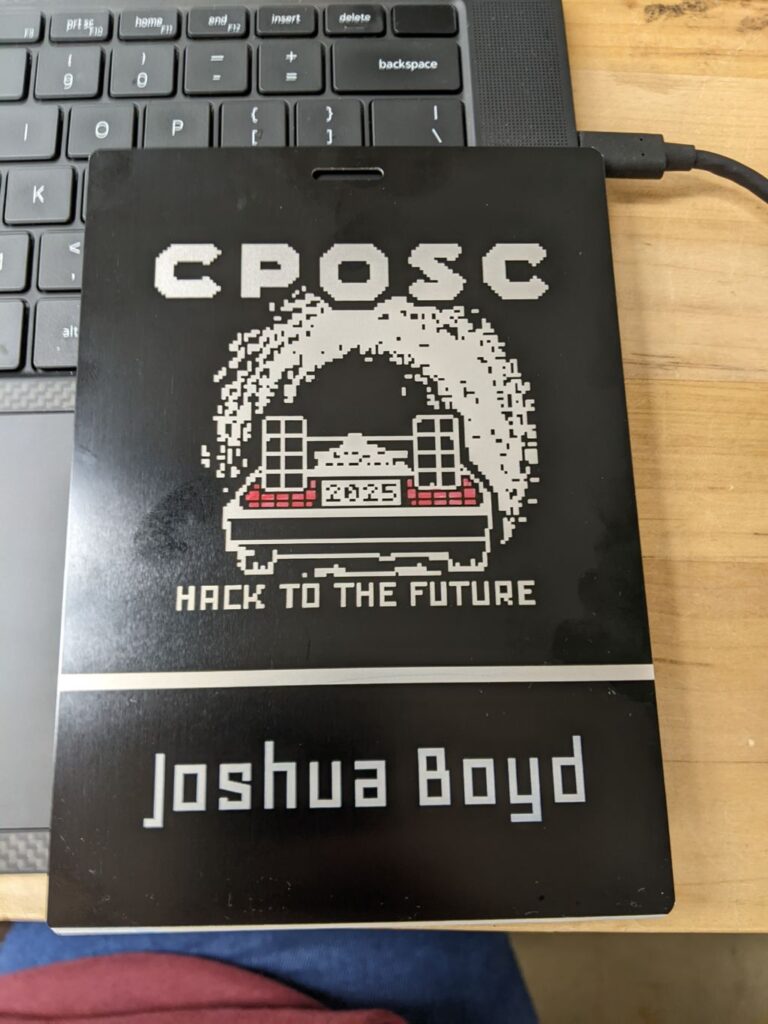
CPOSC 2025

Categories
Uncategorized

Using BitWarden appimage on Ubuntu

This is largely going to just require slight modification for any other appimage.

Create a file named /home/jdboyd/.local/share/applications/bitwarden.desktop
and give it the contents of:

[Desktop Entry]
Type=Application
Name=Bitwarden
Icon=/home/jdboyd/.local/bin/bitwarden-256.png
Exec=/home/jdboyd/bin/Bitwarden-2024.10.2-x86_64.AppImage
Terminal=false
Hidden=false
Categories=Utility

Also download the png icon from https://github.com/bitwarden/brand/blob/main/icons/256×256.png

Then place it at /home/jdboyd/.local/bin/bitwarden-256.png

Now the application can be launch from the dock correctly.